Quick guide
From nothing to seeing your city.
Six steps. At the end you'll have your city open in Vellum and an exported map ready to share.
What you need
- Cities: Skylines (the first one)
- a save of your own
- Windows, macOS or Linux
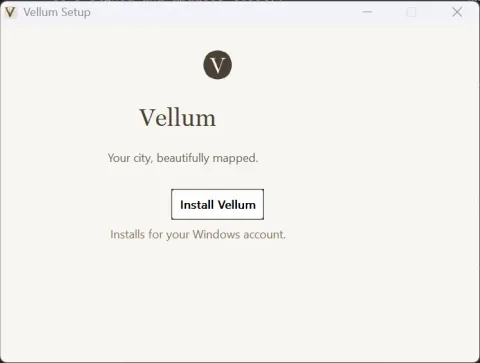
Install Vellum
Download it for your system from the download page and install it. If Windows warns you the first time, here is why, and what to click; on macOS, how to open it the first time.
On Windows you can also use the Microsoft Store: it's signed and updates itself.
Vellum 0.14.0 Install Vellum Bridge
Essential
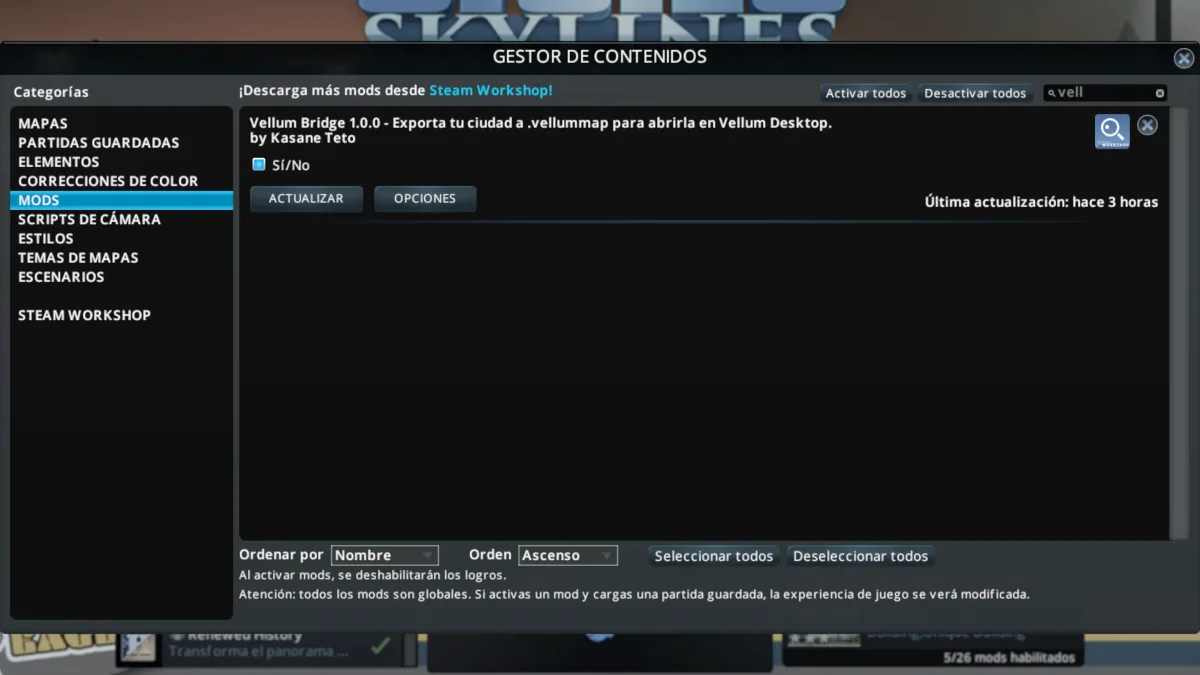
Without Bridge, Vellum has nothing to draw. It's the mod that takes your city out of the game. Subscribe on Steam Workshop: Steam installs it and keeps it up to date.
Then open Cities: Skylines and, in Content Manager → Mods, check that Vellum Bridge is enabled.
Vellum Bridge on Steam Workshop(opens in a new tab)
No Workshop? Manual install, on the download page.
Vellum 1.0.0 In the game, export your city
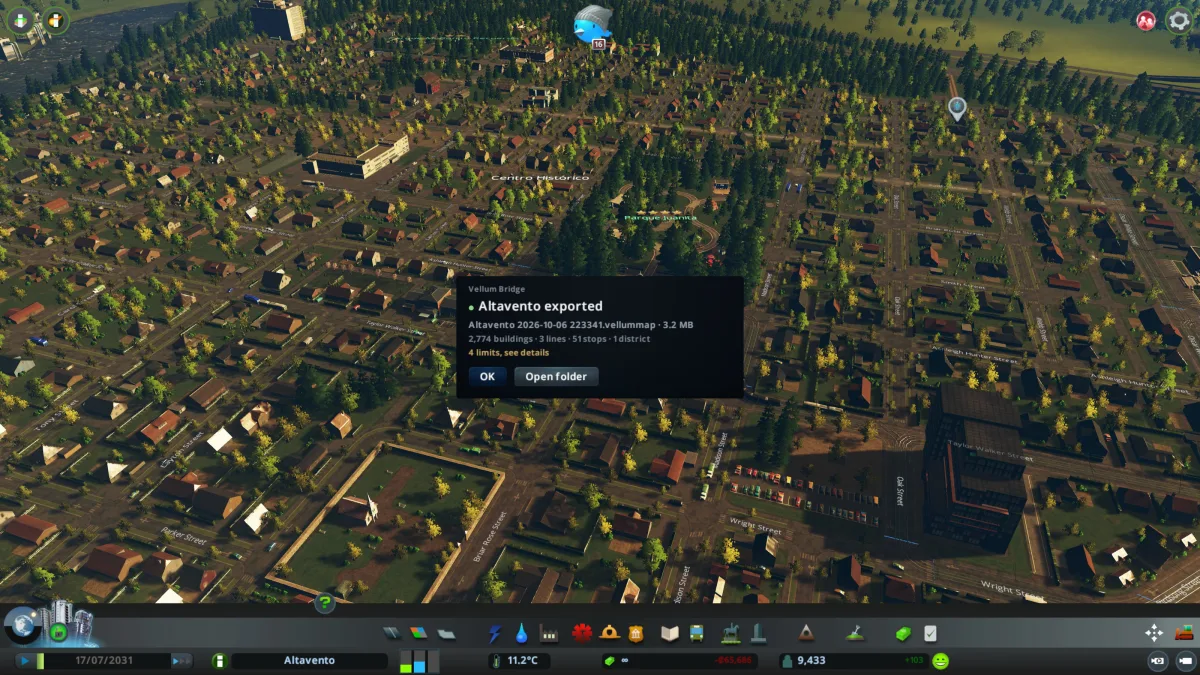
Load your save. In Options → Vellum Bridge, click Export city, or press Ctrl + Shift + E in game.
Bridge saves a
.vellummapfile inDocuments\Vellum Bridge, one folder per city (on macOS and Linux, in~/Vellum Bridge). It only reads: nothing in your save changes, and it never connects to the internet. When it's done, a window shows you the path of the file.Ctrl + Shift + E in game
The game pauses for a moment while Bridge captures your city, then resumes on its own.
Vellum 0.14.0 Open it in Vellum
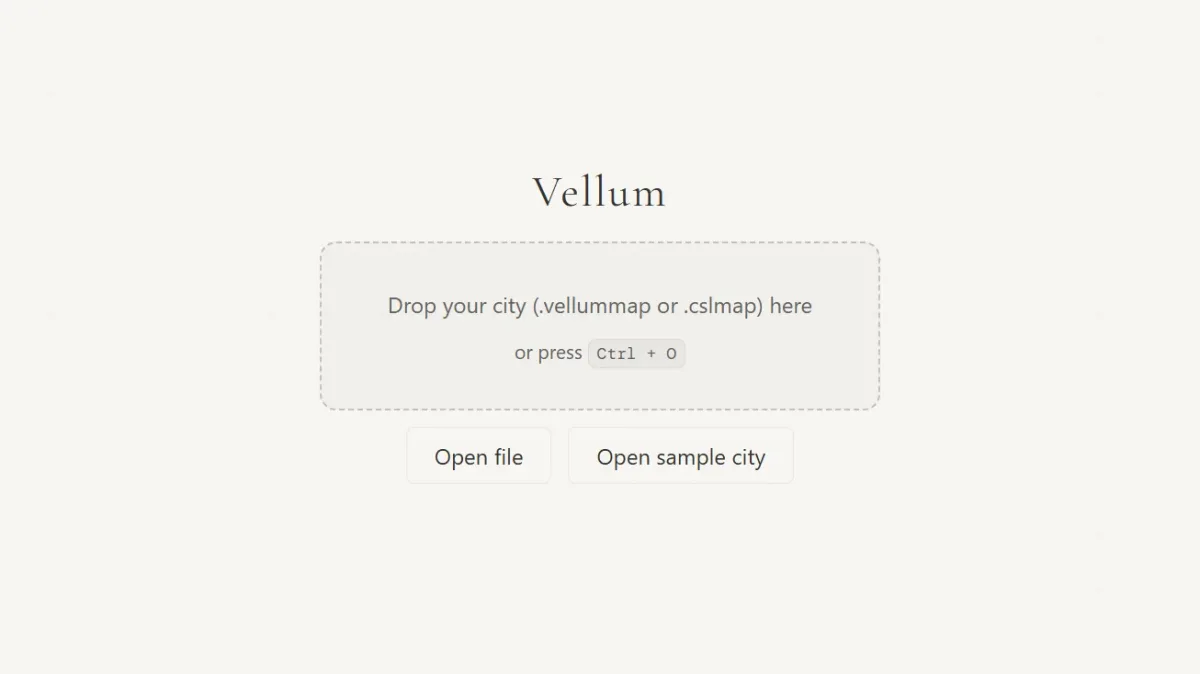
Open Vellum. On the welcome, where it says “Drop your city (.vellummap or .cslmap) here”, drop your
.vellummap. You can also click Open file and pick it.Ctrl + O on Windows and Linux · ⌘ + O on macOS
Vellum 0.14.0 Explore: layers and themes
In the sidebar, under Layers, turn each one on and off: terrain, base map, roads, transit, buildings, forests and districts. Under Map style, change the theme. And open the Schematic view to see your transit network as a metro map.
1…7 show or hide a layer · Shift + 1…7 its options · ? every shortcut
The keys follow the order of the sidebar: 1 is the terrain and 7 the districts.
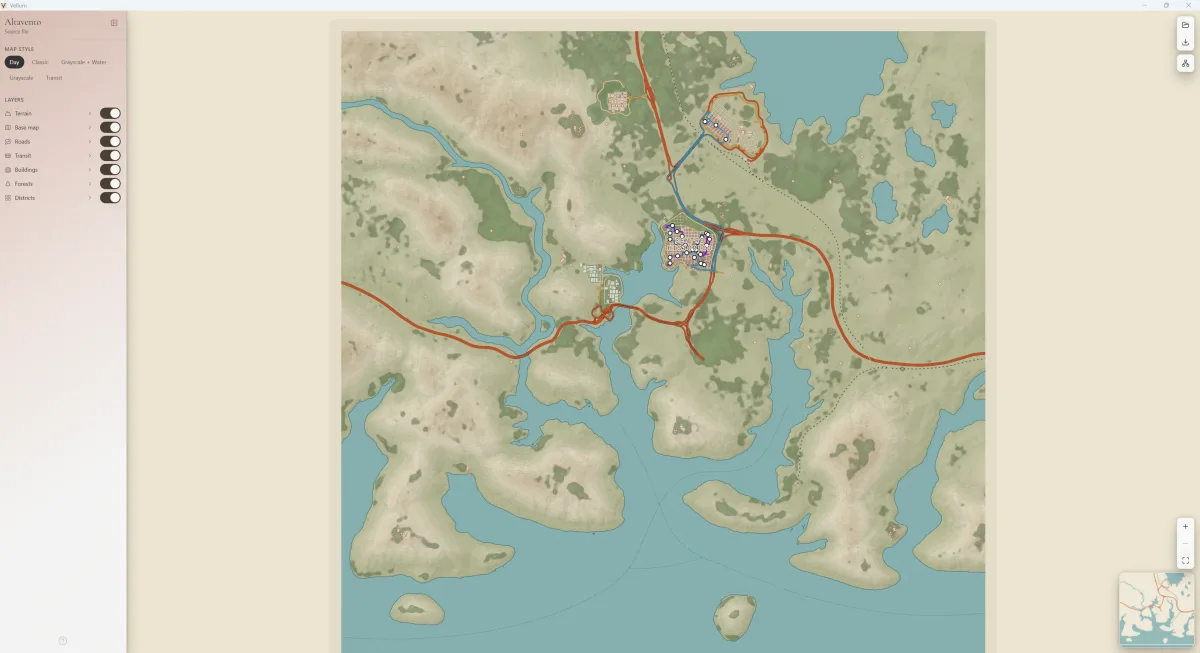
Vellum 0.14.0 Export and share
Press Ctrl + E (⌘ + E on macOS) to open Export Map. Pick PNG at 1×, 2× or 4×, or SVG if you will edit it, and a Background: White, Dark or Transparent.
If you like, add the marginalia: the name of your city, the legends, the graphic scale and the orientation.
Ctrl + E export on Windows and Linux · ⌘ + E on macOS · H clean view, just the map
A video or a stream? H hides the interface and leaves only your city.
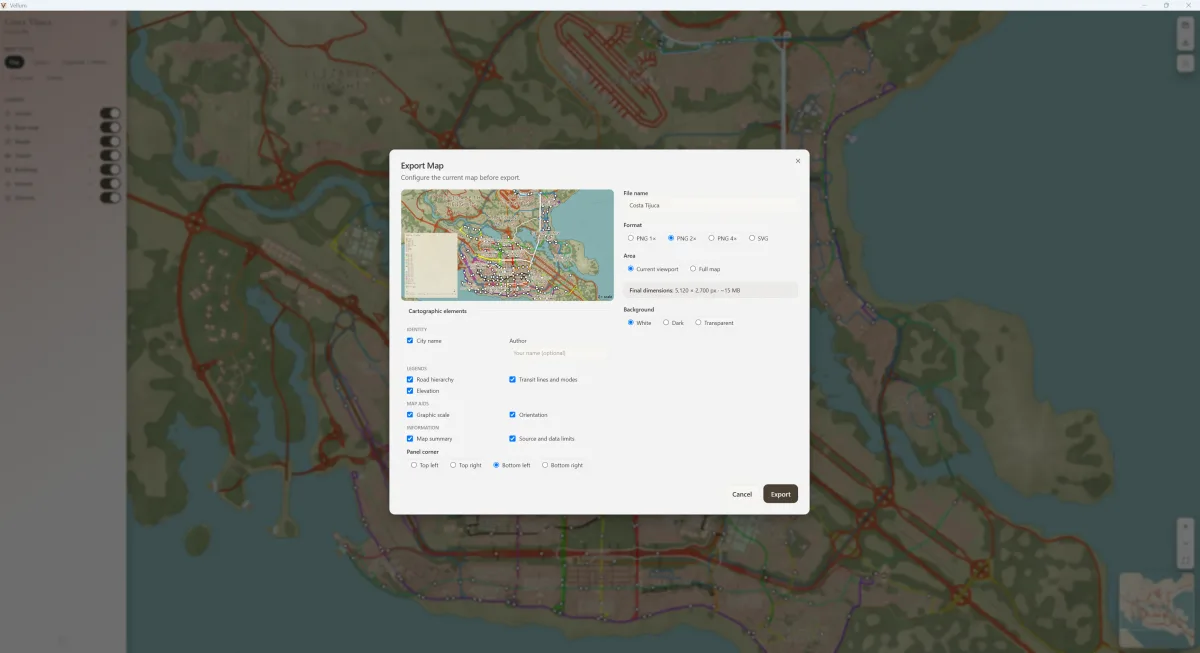
Vellum 0.14.0
Coming from CSL Map View? Open your .cslmap the same way: drop it on the welcome or use Open file.
Done. Now, back to building.
Advanced topicsComing soon
When you want to go further.
Short pages, one per topic, for when your city is already open. They arrive in this guide in a later version:
- Layers and their options
- Themes and
.vellumstyle - Schematic view
- Districts and the place card
- Exporting for video and social media
- Shortcuts